
Product guide
How to preview wheels on your car with NICE RIM
A practical walkthrough from two phone photos to a before-and-after wheel preview.
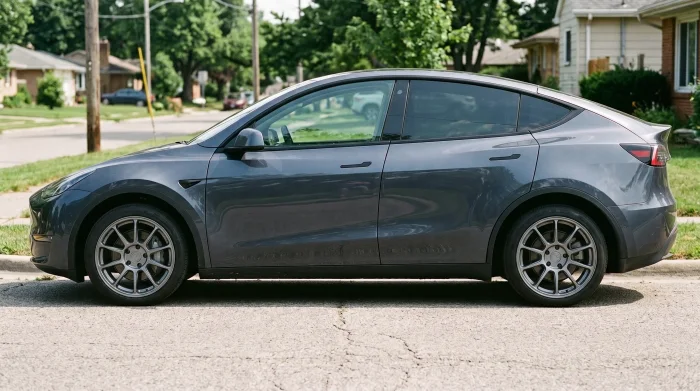
- You need one car photo and one wheel reference photo.
- The preview costs one credit and keeps your car and background.
- Check fitment separately before ordering.
What you need before you start
NICE RIM works from two images: a photo of your car and a reference photo of the wheel you want to see. You do not need a 3D model, a studio or a Photoshop file.
A phone photo is enough. The best car photo is taken in daylight from the side or a front three-quarter angle, with the wheels clearly visible. The best wheel photo is straight-on, complete and evenly lit.
- One car photo: JPG, PNG or WebP, up to 5 MB.
- One wheel photo, or a wheel from the built-in reference library.
- A few credits if you want to compare more than one design.
Step 1: open the visualizer
Open NICE RIM and choose Get started. If you are not signed in, the site asks you to continue with Google before generating.
After signing in you land on the create page. The wheel reference can come from your own upload or from the sample library.
Step 2: add your car photo
- Select the car slotClick the car upload area, or drag a photo onto it. You can also start with one of the sample cars if you only want to try the workflow.
- Check the previewMake sure the whole car is visible and the wheels are not cut off. A sharp photo with even light gives the model more to work with.
- Avoid heavy filtersStrong colour filters, heavy HDR or extreme shadows can make the result less representative of your actual paint.
Step 3: add the wheel reference
Use a product photo or a clear photo from a wheel listing. The wheel face should be visible and reasonably straight-on. If the wheel is photographed at a steep angle, the preview has to infer more of the shape.
You can also choose one of the built-in examples. This is useful for comparing finishes and spoke styles before you have a specific wheel in mind.
- Use a clean, complete wheel image when possible.
- A white or plain background is easier to work with than a busy scene.
- If you are comparing colours, keep the car photo and angle the same.
Step 4: generate the preview
Confirm the model and the credit price shown next to the Generate button, then submit the job. One generated preview uses one credit, deducted when the job is submitted.
The job runs in the background. You can leave the page and return to your history; the result appears when it is ready.
The price label next to Generate is the source of truth. Credit packs and validity are shown on the credits page.
Step 5: review the result
Look at the full car first, then zoom in. Compare the wheel size and stance, the gap between tyre and arch, the spoke direction and the way the finish reads against the paint.
If you are testing several options, keep the same car photo and change only the wheel. That makes the comparison about the wheel instead of the photo.
- Does the wheel look proportional in the arches?
- Does the finish work with the paint and trim?
- Do the spokes and lip look right from this angle?
- Is the car still recognisable as your car?
Step 6: compare, download and decide
Use the before-and-after view to compare the original and generated images. When you have a result you like, download it or keep it in your history for later.
Use the image to shortlist a design. Do not use it as proof that a wheel will fit your car.
What the preview does not do
NICE RIM is a visual reference, not a fitment calculator. It does not measure your arches, brake calipers or suspension clearance.
Before ordering, confirm offset, PCD, centre bore, brake clearance, tyre size and load rating for your exact vehicle with a wheel specialist.
A good-looking preview is the start of the decision, not the end of the fitment check.
Questions
Do I need to sign in to generate a preview?
Yes. You can browse the site and the wheel references without signing in, but generating a preview requires an account so the result can be saved to your history.
How many credits does one preview use?
One preview uses one credit, deducted when the job is submitted. The price shown next to the Generate button is the current price for the selected model.
Can I use a photo from my phone?
Yes. A clear daylight photo from a side or front three-quarter angle is usually enough. Keep the whole car in frame and avoid heavy filters.
See a wheel on your own car before you buy it.
Get started